
Key takeaways
- ✓ There are two migrations hiding behind one phrase: the quick app switch on one phone, and the real move that puts your number on a business-owned account the whole team can work
- ✓ The app switch keeps your number and your chats if you back up first, but it still leaves the conversations stuck on one person's device
- ✓ Moving the number to the WhatsApp Business Platform puts ownership in a business account you control, not a personal handset
- ✓ A shared workspace is what actually fixes the founder-bottleneck pain: everyone answers the same number from one browser inbox, with assignment and notes
- ✓ Plan the cutover for a quiet window, brief the team, and keep the old phone reachable until the new setup is live, so customers never notice a gap
What does a WhatsApp Business migration actually involve?
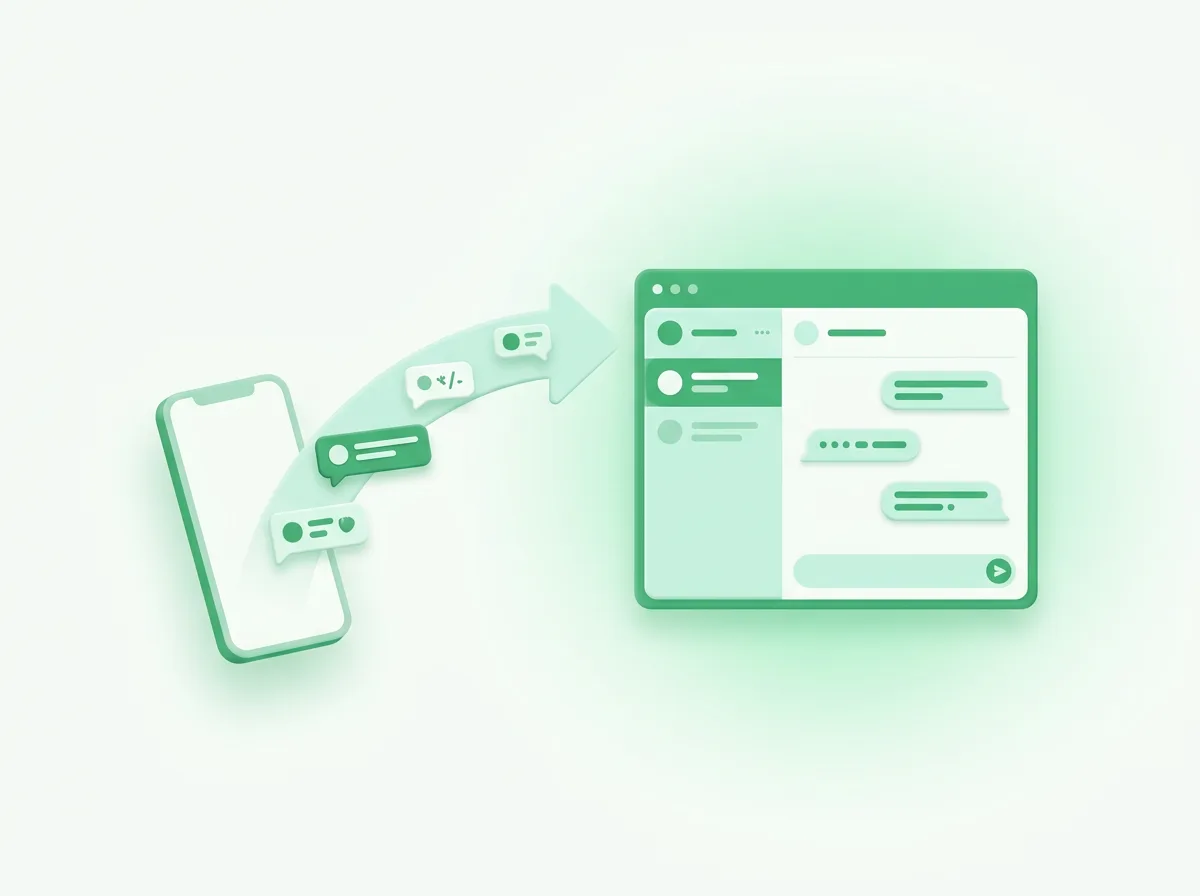
A WhatsApp Business migration is really two different jobs, and most guides only cover the easy one. The first is switching the app on a single phone from personal WhatsApp to the WhatsApp Business app. The second is moving the number onto a business-owned account so a whole team can work it. They are not the same, and the gap between them is where small teams get stuck.
The easy job takes a few minutes. You back up your chats, install the Business app, verify the same number, and your conversations come across. Plenty of consumer-level guides stop here.
The job that actually matters for a 4-to-15-person team is the second one. If the goal is to stop the founder being the bottleneck, switching the app on their phone changes the icon, not the problem. This post covers both, in order, so you can do the quick part today and plan the real part properly.
Will you lose your chats when you switch?
No, you will not lose your chats if you back up before you switch, and that backup step is the one people skip and regret. The transfer is reliable when it is done in the right order, and risky when it is not.
On Android, your history lives in a Google Drive backup. On iPhone, it lives in iCloud. The official path is to back up first, then install the Business app and let it restore. WhatsApp documents how to move your account from Messenger to the Business app, and the restore only works if a current backup exists.
The honest caveat: chat transfer is tied to the same phone number and the same device's backup. It is not a magic copy that survives a wiped phone or a different operating system with no backup. Back up, confirm the backup finished, and only then start the switch.
How do you move from personal WhatsApp to the Business app?
You move from personal WhatsApp to the Business app by backing up, installing the Business app, and verifying the same number, which then pulls your history across. It is a short, well-worn path, and it keeps your number intact.
In practice the sequence is simple. Update your current WhatsApp and run a manual backup. Install the WhatsApp Business app from your app store. Open it, accept the terms, and verify the same phone number you already use. The app detects the existing account on that number and offers to migrate it, then restores your chats from the backup. Finally, build out your business profile with hours, an address, and a catalog if you sell.
That is the whole consumer migration. If you are a solo operator, you may be done here. If you are a team, you have just moved the bottleneck from one app to another app on the same phone, which is the next problem to solve.
Why the app switch does not fix the team problem
The app switch does not fix the team problem because the WhatsApp Business app still runs on one phone, in one session, owned by one person. It was built for a single business identity, not a group of agents sharing a number. Converting the app does nothing to change that.
You feel this fast. Two people cannot comfortably answer the same number, ownership of a thread is a guess, and the manager has no view of who replied to whom. We cover those limits in detail in the post on multiple users on one number, and the deeper reasons in our app vs API comparison.
There is a quieter risk too. If that number is registered on a rep's personal phone, it is theirs in every practical sense, which is the whole story of WhatsApp Business number ownership. The app switch leaves that lock-in exactly where it was. To actually fix the team problem, the number has to leave the personal handset.
How does the number move to the WhatsApp Business Platform?
The number moves to the WhatsApp Business Platform by registering it to a WhatsApp Business Account inside a Meta Business Manager your company owns, which usually means deregistering it from the app first. This is the Cloud API path, and it is the layer that makes a number a business asset rather than a personal one.
Meta documents how to migrate the number from the WhatsApp Business app onto a business account. The number is then administered in Business Manager, where access is granted and revoked by the company, not held on a SIM in someone's pocket.
Be honest with yourself about the setup cost. The platform path involves a verified business, a Business Manager account, and template approval for certain message types, so it is more work than installing an app. The payoff is real control and a number that survives staff changes. A workspace built on the platform, like Clapvo, handles most of this plumbing so you are not wiring up the API by hand.
A step-by-step migration playbook
Here is the order that keeps customers from noticing the move and keeps your team from losing history. Treat it as a checklist you run once, not a thing you improvise mid-week.
First, prep. Pick the number that will be your business number for the long term, ideally a dedicated line and not a founder's personal SIM. Then back up the existing chats and confirm the backup completed. Next, decide your destination: the Business app alone if you are a solo operator, or a workspace on the WhatsApp Business Platform if you are a team. After that, set up the destination before you cut over, so the inbox, team invites, and roles are ready and waiting.
Then comes the cutover. Schedule it for a low-traffic window, an evening or a weekend, so few conversations are live while you switch. Brief the team on where conversations will live now and who owns what. Keep the old phone reachable until you have confirmed the new setup is sending and receiving. You usually do not need to tell customers anything, because the number does not change, but a short "we are now answering faster as a team" note never hurts. Finally, watch the first day closely and reassign any threads that need an owner.
How long does a WhatsApp Business migration take?
The app switch takes minutes; the full move to a business-owned workspace takes anywhere from an hour to a couple of days, mostly depending on business verification. It is worth setting expectations so nobody assumes the whole thing is instant.
Converting a single phone to the Business app and restoring a backup is a coffee-break task. Standing up a shared workspace is fast too: most teams send their first message from Clapvo within an hour of connecting a number. The variable that can stretch a WhatsApp Business migration is Meta's side, where business verification and template approval run on Meta's clock, not yours.
So plan for a quick win and a short tail. Do the app and workspace setup in an afternoon, and leave a little room for any verification step that depends on Meta. We reduce the friction of the parts we control. We do not control Meta's review timelines.
Moving your team onto Clapvo
Clapvo is built to be the destination at the end of this playbook: a shared WhatsApp workspace your whole team works from one browser, instead of a number trapped on someone's phone. You connect a business number, invite the team, and everyone answers from the same inbox with assignment, notes, templates, and role based permissions.
The pricing matches the small-team reality. Clapvo charges per WhatsApp connection, not per seat: $15 a month (or R$89), including one WhatsApp connection and five team members, with a seven-day free trial and no credit card required. Adding a sixth or tenth teammate does not change the bill.
If the founder-bottleneck pain sounds familiar, the migration is the fix, and the workspace is where it lands. See what is included on the Clapvo features page and the full plan on the pricing page.