> ## Documentation Index
> Fetch the complete documentation index at: https://clapvo.com/docs/llms.txt
> Use this file to discover all available pages before exploring further.
# Connect WhatsApp
> Pair your WhatsApp number to your organization using the QR code flow.
Pair a WhatsApp number to your organization by scanning a QR code from your phone. Once paired, your number powers the shared inbox and outbound campaigns.
## Before you start
* An organization (see [Create an organization](/docs/getting-started/organization/create-organization))
* The phone holding the WhatsApp number you want to connect, with internet access
* WhatsApp open on the phone
## Steps
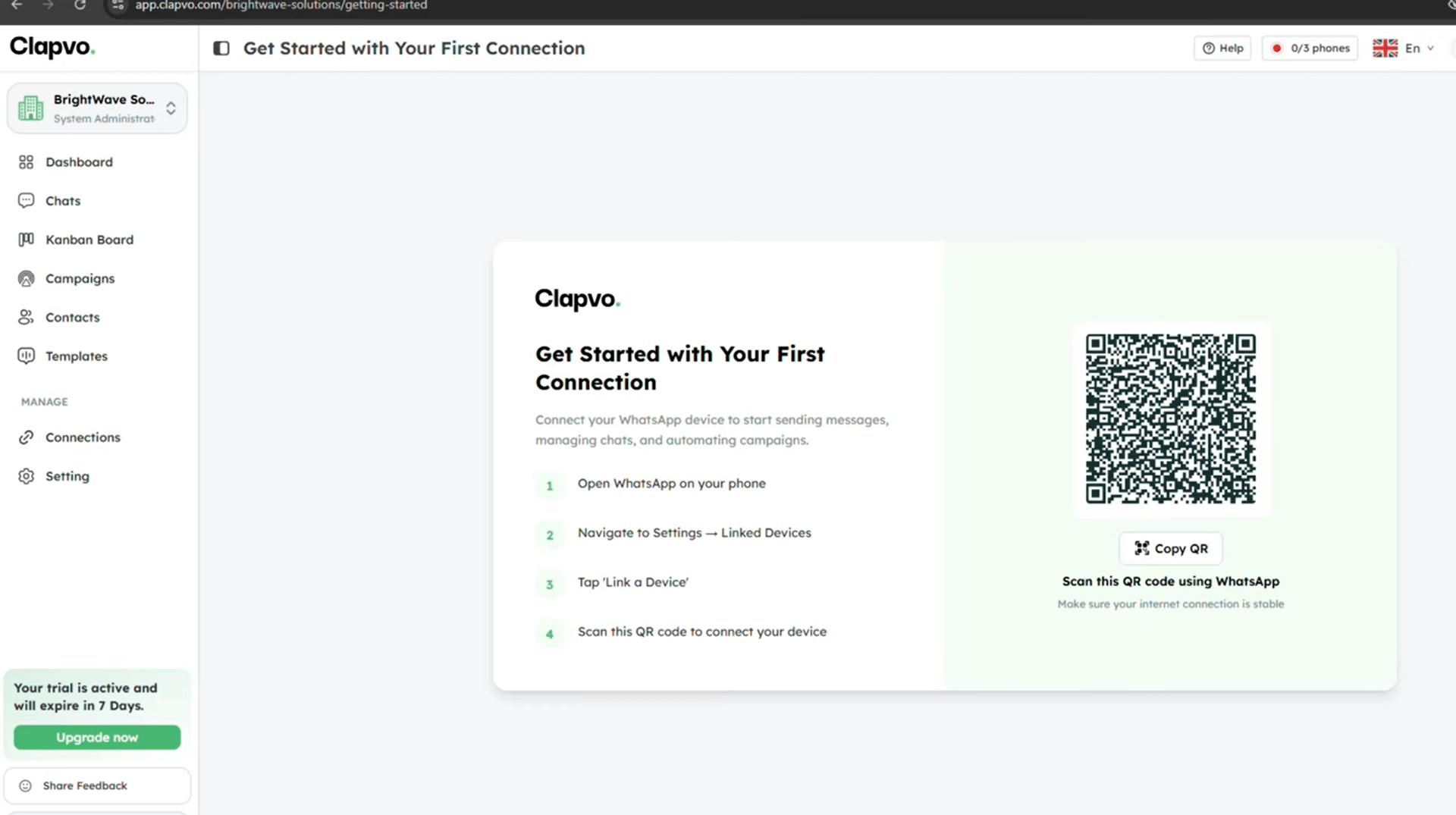
After signing in to a new organization, Clapvo routes you to the QR pairing flow automatically. To pair from elsewhere, open **Connections** and start a new pairing.
Tap **Settings** -> **Linked Devices** -> **Link a Device**.
Point your phone at the QR code on screen.
Clapvo updates the screen in real time. Stay on the page until pairing completes.
On success, Clapvo redirects you to the dashboard.
## Tips
* The QR refreshes periodically. If yours expired, just wait for a new one.
* Keep the phone next to your laptop with WhatsApp open during pairing.
* A successful connection appears under **Connections** with status connected.
## Related
* [Add a WhatsApp connection](/docs/product/connections/add-connection)
* [WhatsApp number disconnected](/docs/support/troubleshooting/whatsapp-disconnected)
* [QR code not loading](/docs/support/troubleshooting/qr-not-loading)
 Pair a WhatsApp number to your organization by scanning a QR code from your phone. Once paired, your number powers the shared inbox and outbound campaigns.
## Before you start
* An organization (see [Create an organization](/docs/getting-started/organization/create-organization))
* The phone holding the WhatsApp number you want to connect, with internet access
* WhatsApp open on the phone
## Steps
Pair a WhatsApp number to your organization by scanning a QR code from your phone. Once paired, your number powers the shared inbox and outbound campaigns.
## Before you start
* An organization (see [Create an organization](/docs/getting-started/organization/create-organization))
* The phone holding the WhatsApp number you want to connect, with internet access
* WhatsApp open on the phone
## Steps